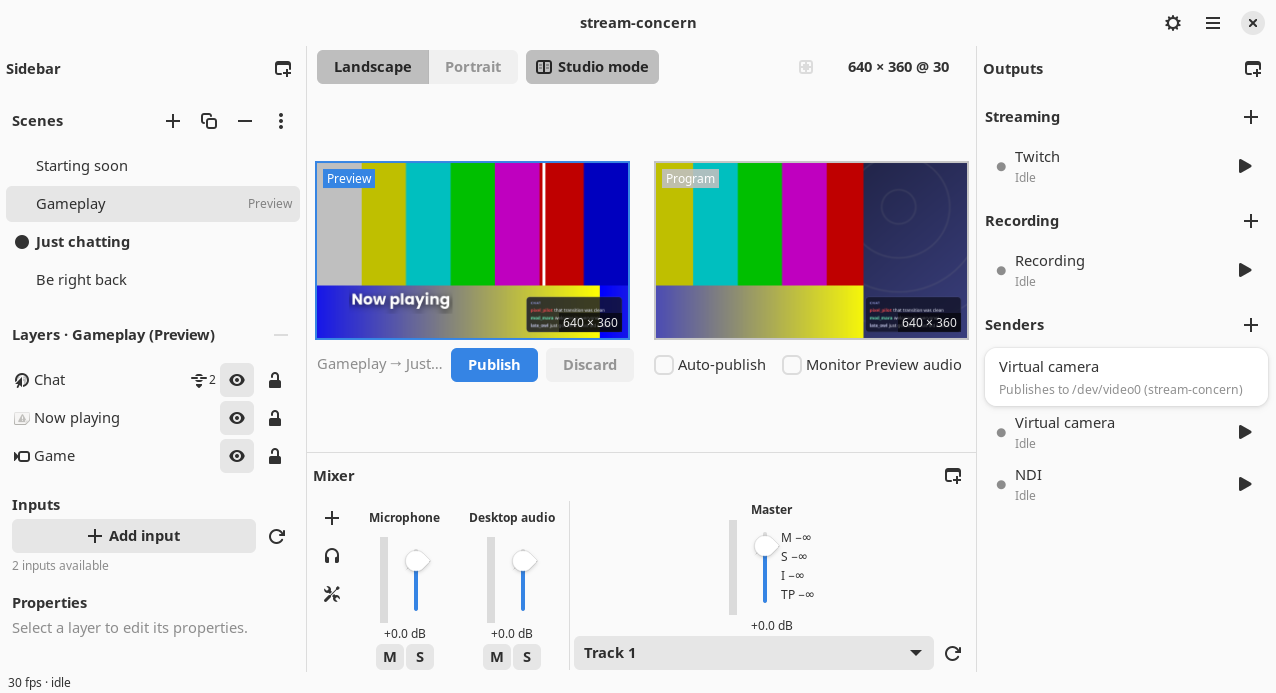
Scenes and the canvas editor
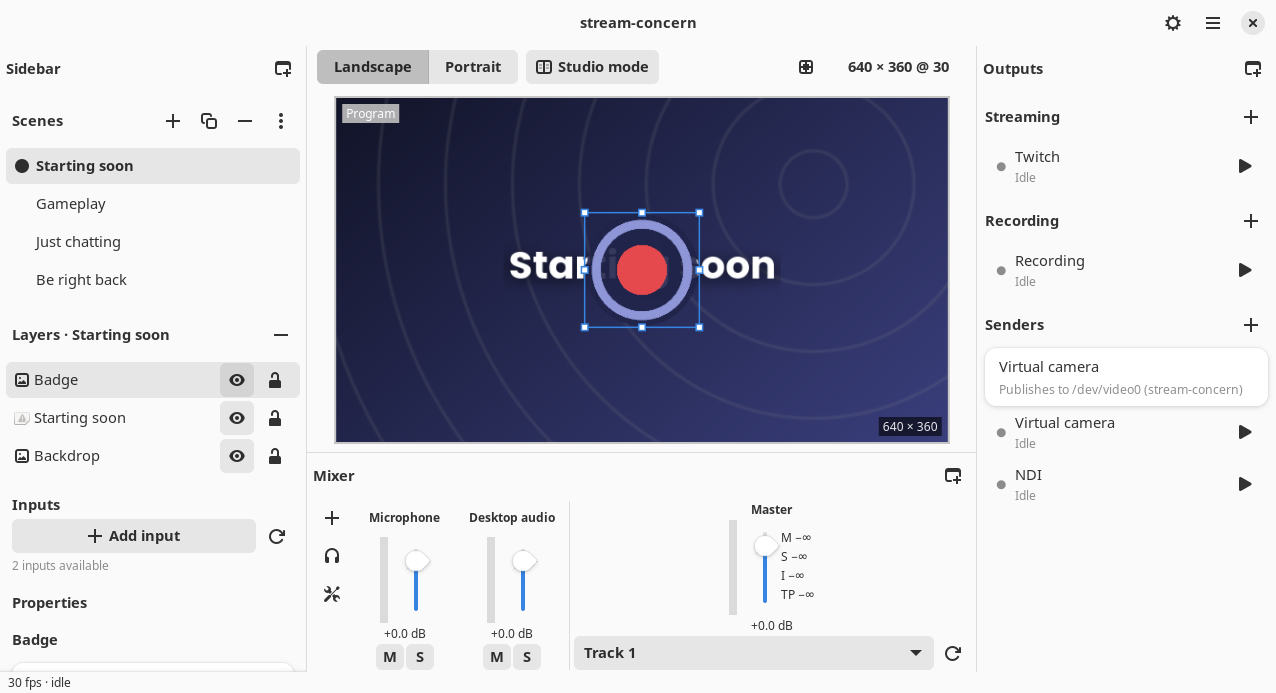
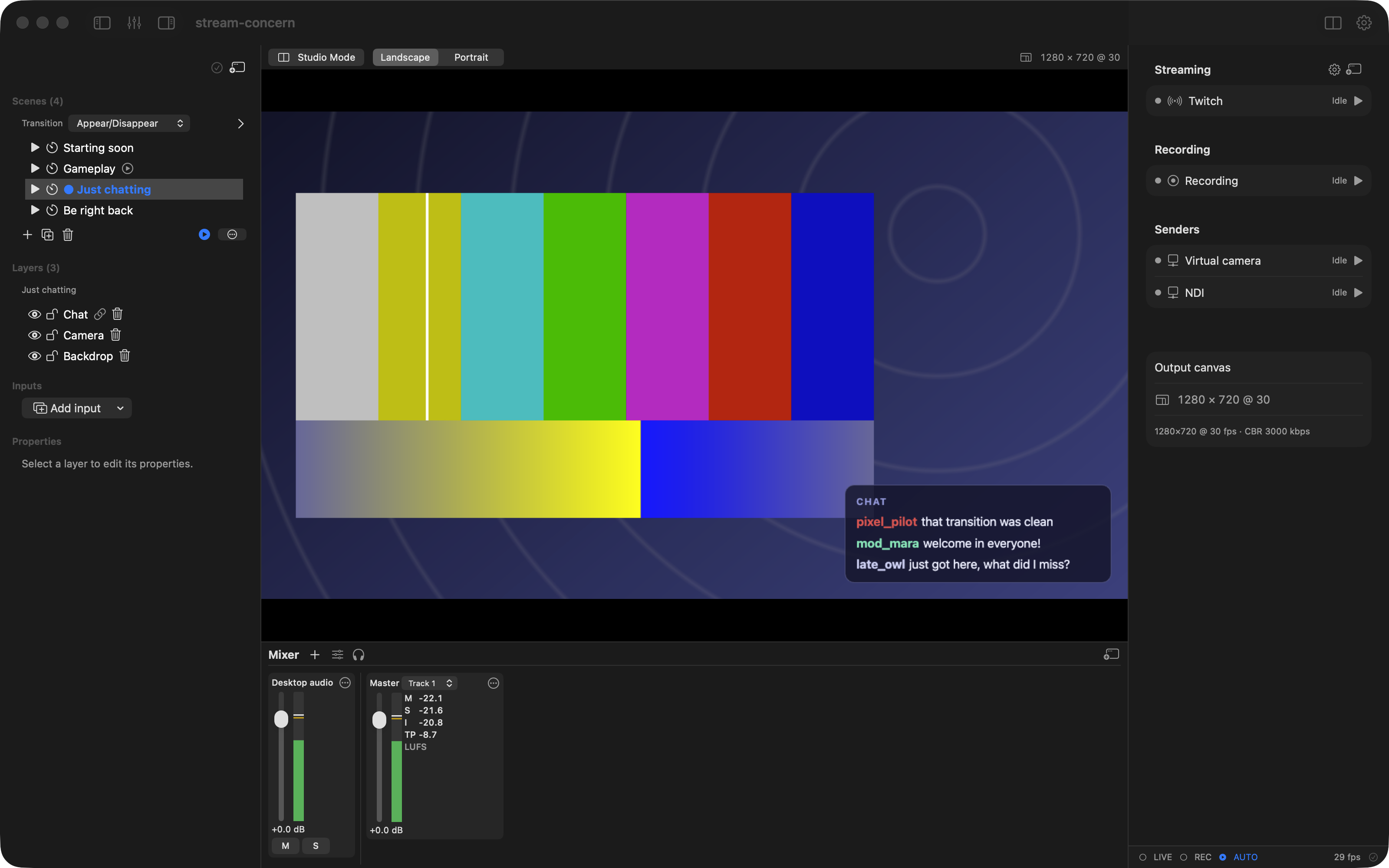
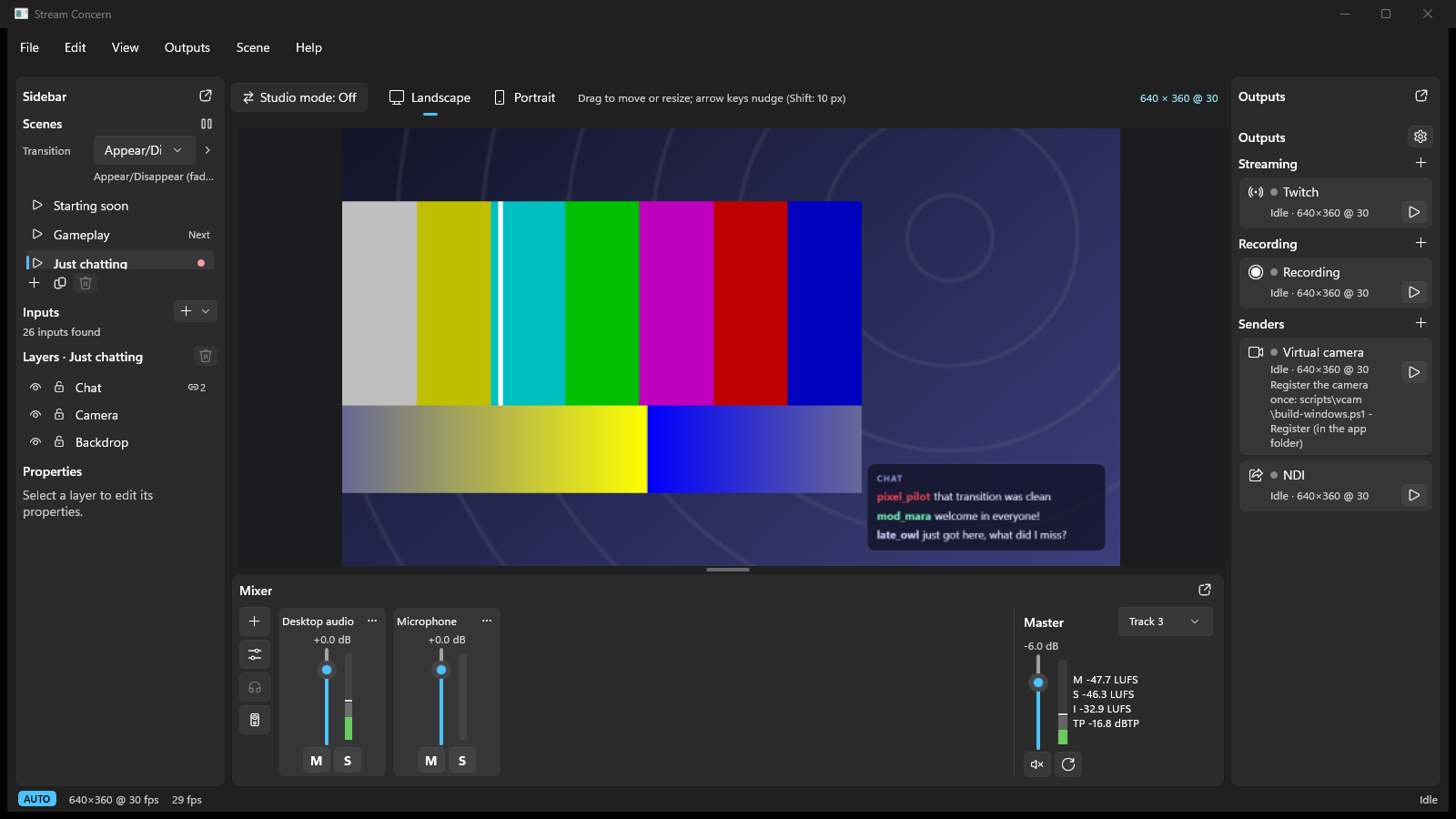
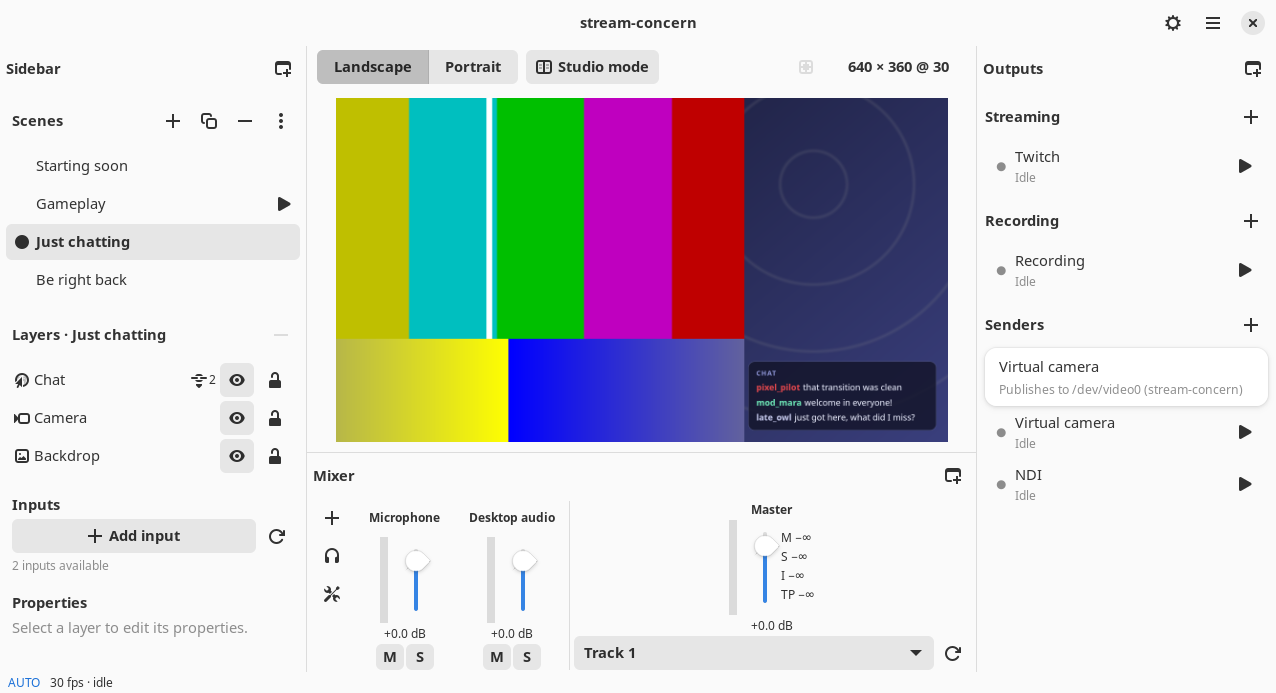
A scene is an ordered stack of layers composited onto the canvas. The Scenes panel on the left (heading: Scenes; toggle the panel from View ▸ Sources) holds, top to bottom: the scene list with the Transition picker, the Add source pull-down, the Layers stack, the layer Properties, the Capture properties for the selected layer’s source, and — when the selected layer has one — its Media, Image, Text, RTMP Server or Interchange section.
The scene list
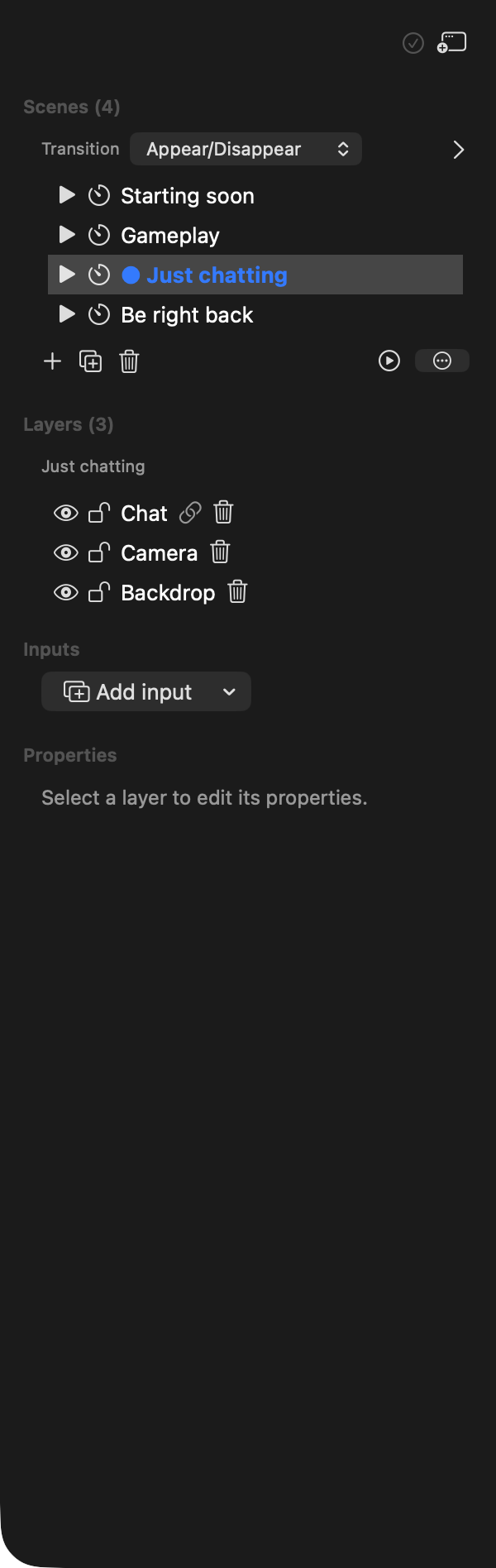
The list sits under a Scenes (N) header that collapses it (click the header
or its arrow). Collapsed, the header names the program scene, e.g.
Scenes (4) · ● Gameplay, and hides the rows, the Transition picker and the
Add / Duplicate / Delete controls. The Layers (N) header below works the
same way; collapsed it shows the selected layer (or none selected). Both
remember whether they are open across restarts and start open. The layer
keyboard shortcuts (Delete / Backspace removes the selected layers,
⌘A / Ctrl+A selects all, Esc clears the selection) keep acting on
the selection while the Layers list is collapsed, including a selection made
on the canvas.
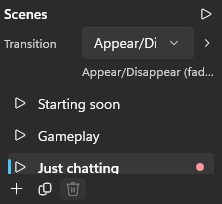
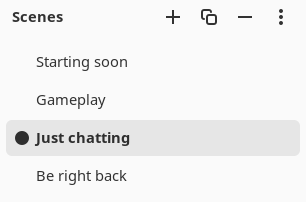
Each scene is a row with, left to right:
- ▶ — Set as program scene (hover: “Set as program scene (Shift-click to cut)”): make this scene the one composited to the preview and outputs. A plain click uses the current transition; Shift-click forces an immediate cut.
- ▲ / ▼ — Move scene up / Move scene down (reorder).
- ⏱ — the per-scene transition-override menu (see Transitions below). The button shows a dot (⏱●) when the scene overrides the collection default.
- the scene name (the program scene is marked with a leading ● and shown in bold; click a name to select it).
- while scene automation runs outside Studio mode, ⏵ on the scene that goes on next and Popup on the scene popped up over the root now (see Scene automation).
Below the list:
- ➕ Add — add a new scene (named
Scene N). - ⧉ Duplicate — copy the selected scene (its layers are re-created; deep structure such as transition overrides is not copied).
- 🗑 Delete — delete the selected scene (the program scene cannot be deleted).
- a Name field to rename the selected scene. Scene names are unique: renaming a scene to another scene’s name (ignoring case and surrounding spaces) is refused with “A scene named “…” already exists” in the status bar, and the field shows the scene’s name again.
macOS
Windows
Linux
Transitions
Switching to a scene can cut instantly or animate over a short time. The Transition picker sets the collection default: the transition used when you click ▶ on a scene, press Publish in Studio mode, or automation switches (unless the scene has its own, see below).
The picker has the kind, then, for every kind but Cut, a Duration and an Easing, and for some kinds one more choice:
| Kind | What it does | Its own choice |
|---|---|---|
| Cut | Switches at once. | none |
| Crossfade | The new scene fades in over the old one. | none |
| Fade through black | The old scene fades to black, then the new one fades up. | none |
| Appear/Disappear | Only the layers that differ move: layers the new scene adds appear, layers it drops disappear, layers the two scenes share stay exactly as they are. | Motion |
| Slide | The new picture slides in over the old one. | Direction |
| Push | The new picture pushes the old one out; both move. | Direction |
| Wipe | A moving edge (softened slightly) uncovers the new picture. | Direction |
| Zoom | In: the new picture grows from the centre. Out: the old picture shrinks into the centre. | Zoom (In or Out) |
- Duration — Fast (250 ms), Normal (500 ms) or Slow (1000 ms), or type any value in milliseconds up to 10 000 (10 s).
- Easing — Linear or Ease in-out.
- Direction (Slide, Push, Wipe) — Left, Right, Up or Down: the way the motion travels. Left moves the picture leftwards, so the new one comes in from the right edge.
- Motion (Appear/Disappear) — how the layers that change come and go: Fade (opacity only), Zoom (they also grow from, or shrink to, 85 % of their size), or Up, Down, Left or Right (arriving layers travel in from the canvas edge to their place; leaving layers travel off the same way).
Appear/Disappear decides “shared” layer by layer: the same layer (a linked layer), or else a layer showing the same source, that is drawn identically in both scenes (same position, size, crop, rotation and opacity, visible in both). A shared layer that has moved or changed counts as one leaving and one arriving, so it fades or moves out and back in place. When the two scenes share nothing and the Motion is Fade, it looks exactly like a Crossfade.
Switching kind keeps the Duration and Easing. Choosing a timed kind while the picker is on Cut starts at 500 ms, Ease in-out. A Direction is kept when you switch between Slide, Push and Wipe.
New scene collections start with Appear/Disappear, 500 ms, Ease
in-out, Fade. A scenes.toml saved before this keeps its transition (Cut,
for most) until you change the picker.
Where the pickers are:
- The collection default: in the scene panel under the Scenes header (the egui and macOS apps); the Transition drop-down in the Scenes header (Windows); ⋯ ▸ Transitions… in the Scenes header, under Default transition (Linux).
- A per-scene override: the scene’s ⏱ (see below); in the Windows app the scene’s right-click menu, Transition override…; in the Linux app the scene’s right-click menu, Transition…, or the same Transitions… window.
- Scene automation: its window’s Transition section (see Scene automation).
Per-scene overrides
Each scene’s ⏱ menu (“Override this scene’s transition”) lets that scene use its own transition instead of the collection default. It shows “(inheriting the collection default)” until you change it, and once overridden a Clear override entry returns it to the default. An overridden scene’s ⏱ button carries a dot. In the Windows and Linux apps the override has a Use the default transition switch in place of Clear override. A scene’s override takes the same kinds and choices as the collection default.
Cutting past a transition
Shift-click a scene’s ▶ to force an immediate cut, ignoring the default and any override for that one switch.
The progress readout
While a timed transition is blending, a progress bar appears under the picker
showing <from> → <to> NN%, and the status bar at the bottom appends
· transition NN%. Both clear when the blend completes.
Layers
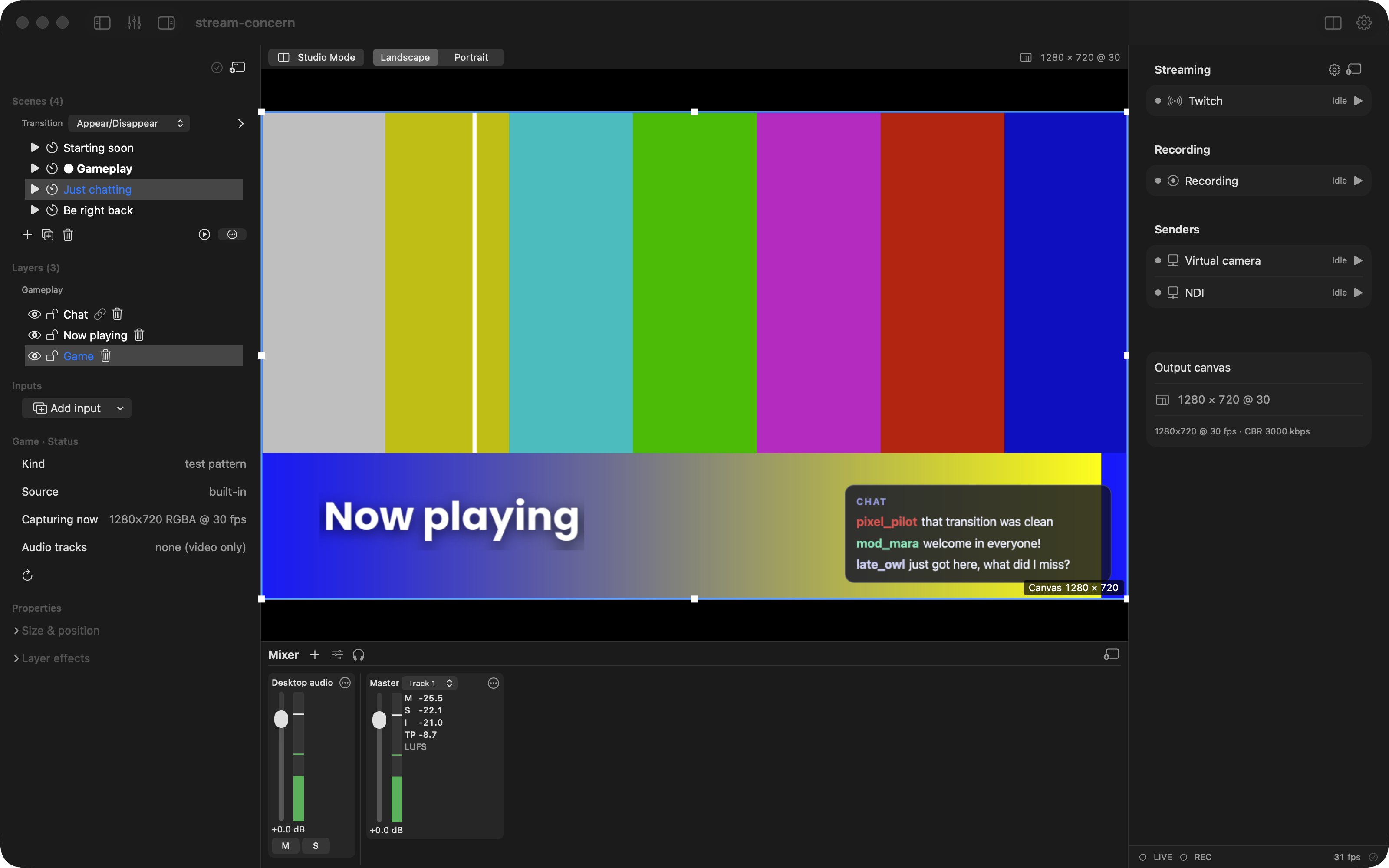
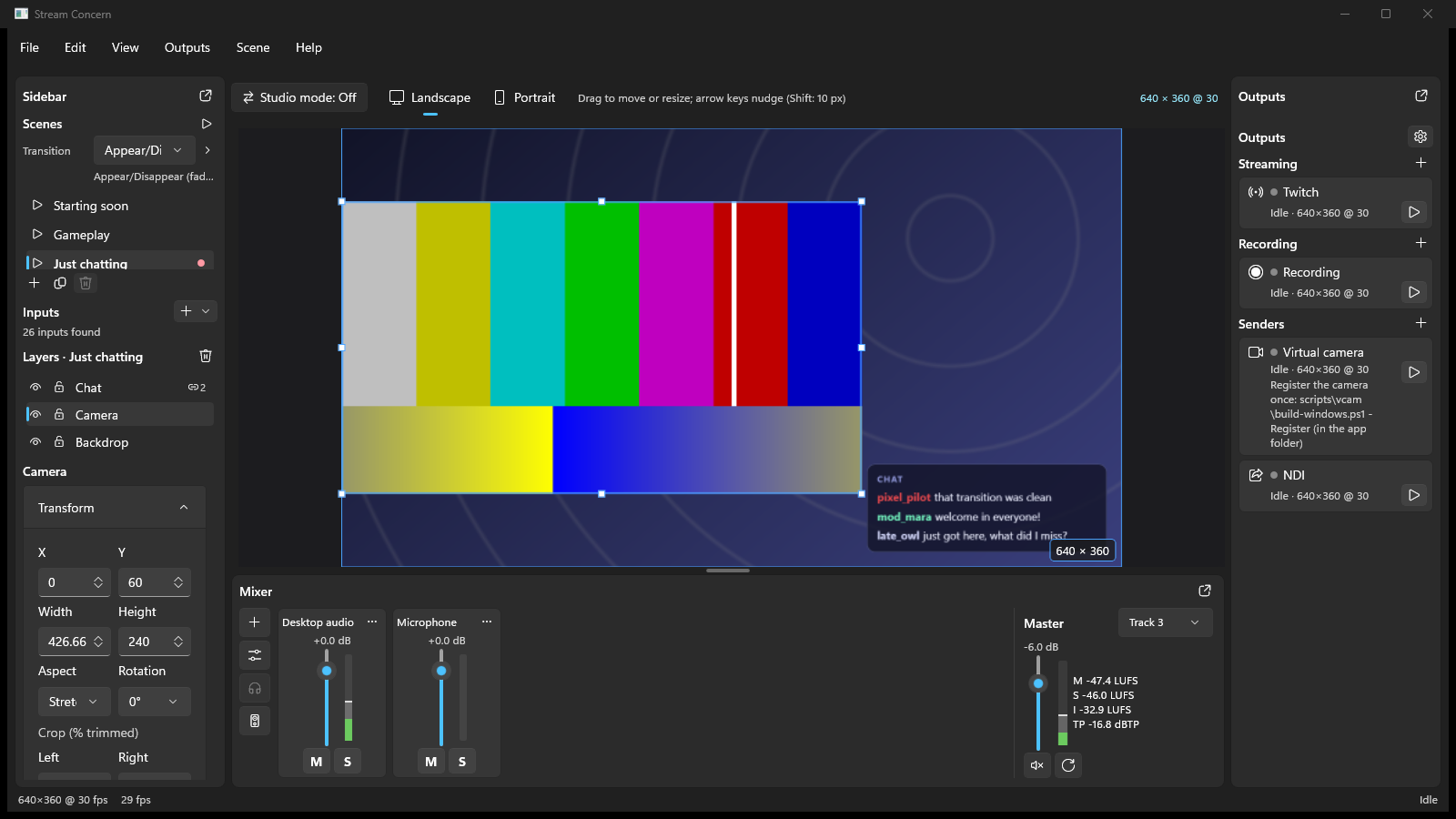
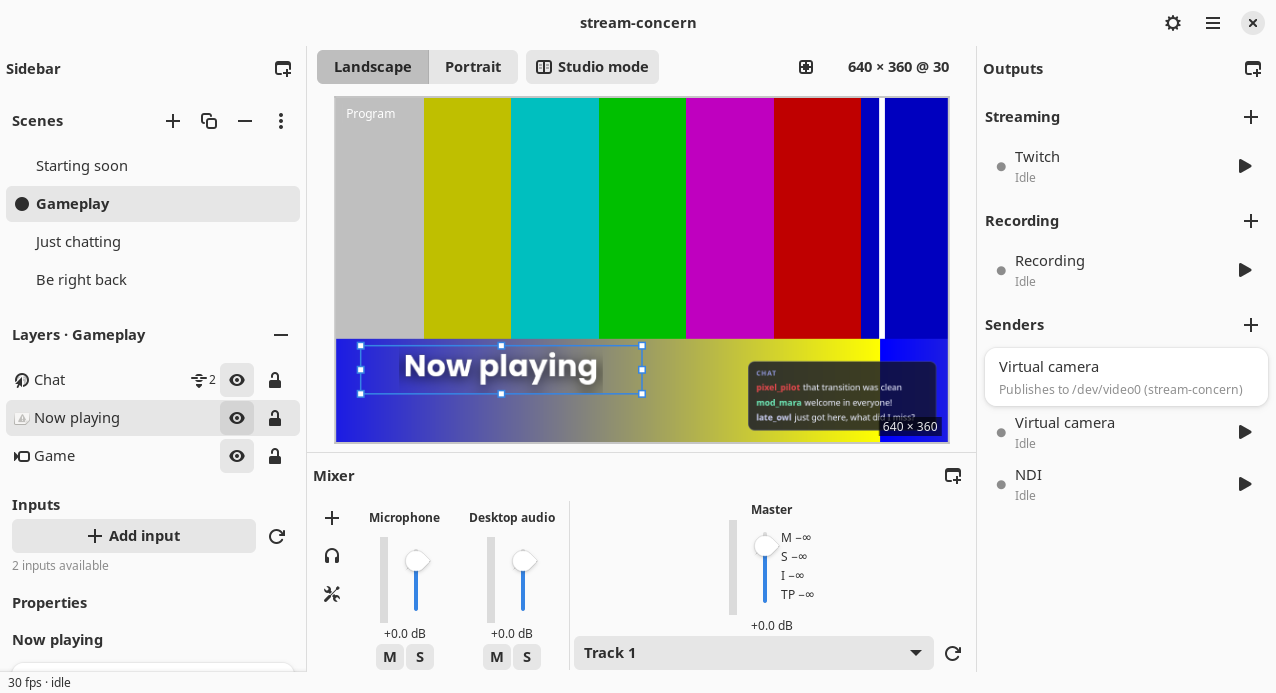
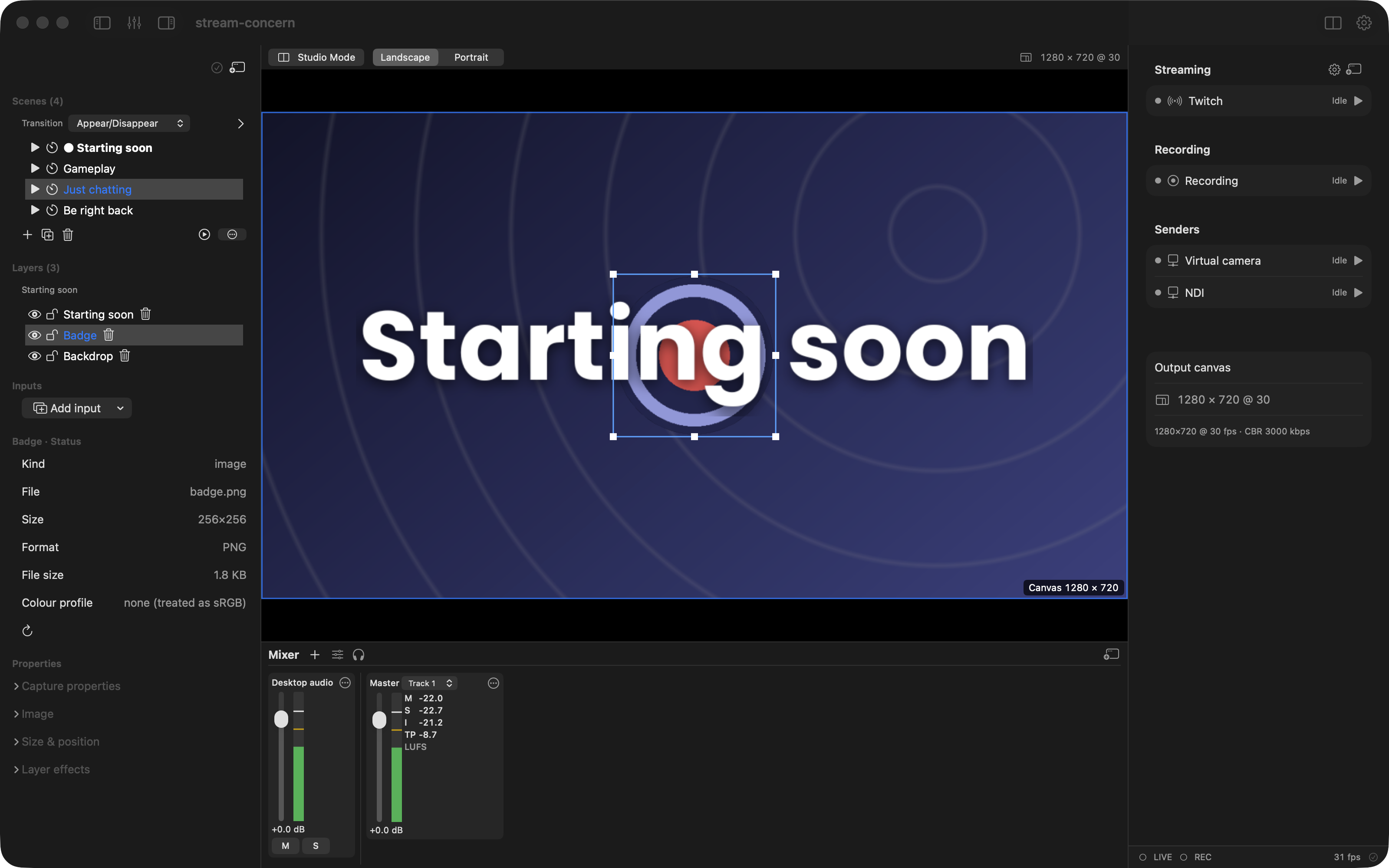
The Layers (N) stack (collapsible, see The scene list) lists the selected scene’s layers, drawn top-most first (the top of the list is the front-most layer). Each row has:
- 👁 / — — toggle visibility (a hidden layer’s name is greyed).
- 🔒 / 🔓 — toggle lock.
- the layer name (click to select it; right-click for the layer menu, see Linked layers).
- 🔗 — shown when the layer is linked into other scenes; hover it for “Linked · in N scenes: …”.
- ˄ / ˅ — move the layer up or down the stack.
- 🗑 — remove the layer.
When there are no layers the stack says “No layers — add a source above.” A media layer is torn down through the engine when removed (its mixer input and file source stop first).
macOS
Windows
Linux
macOS
Windows
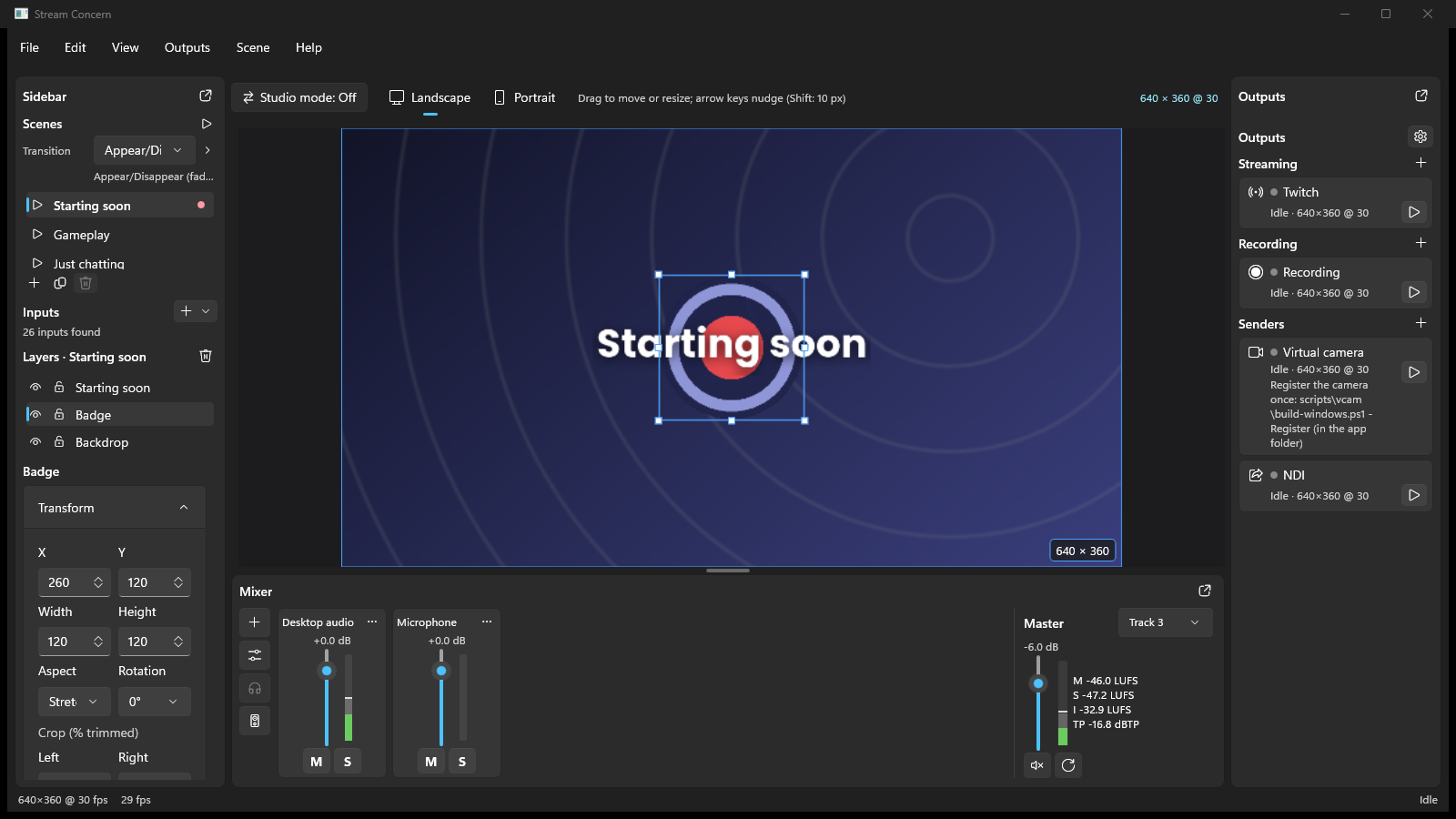
Linux
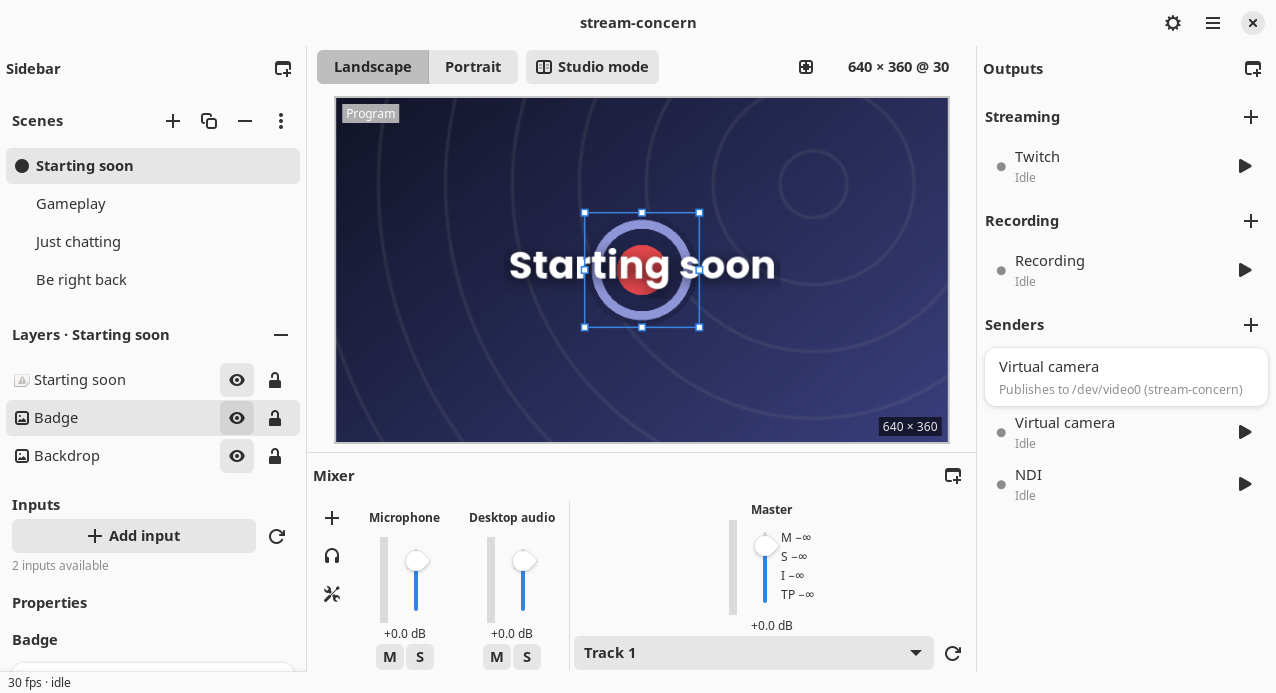
macOS
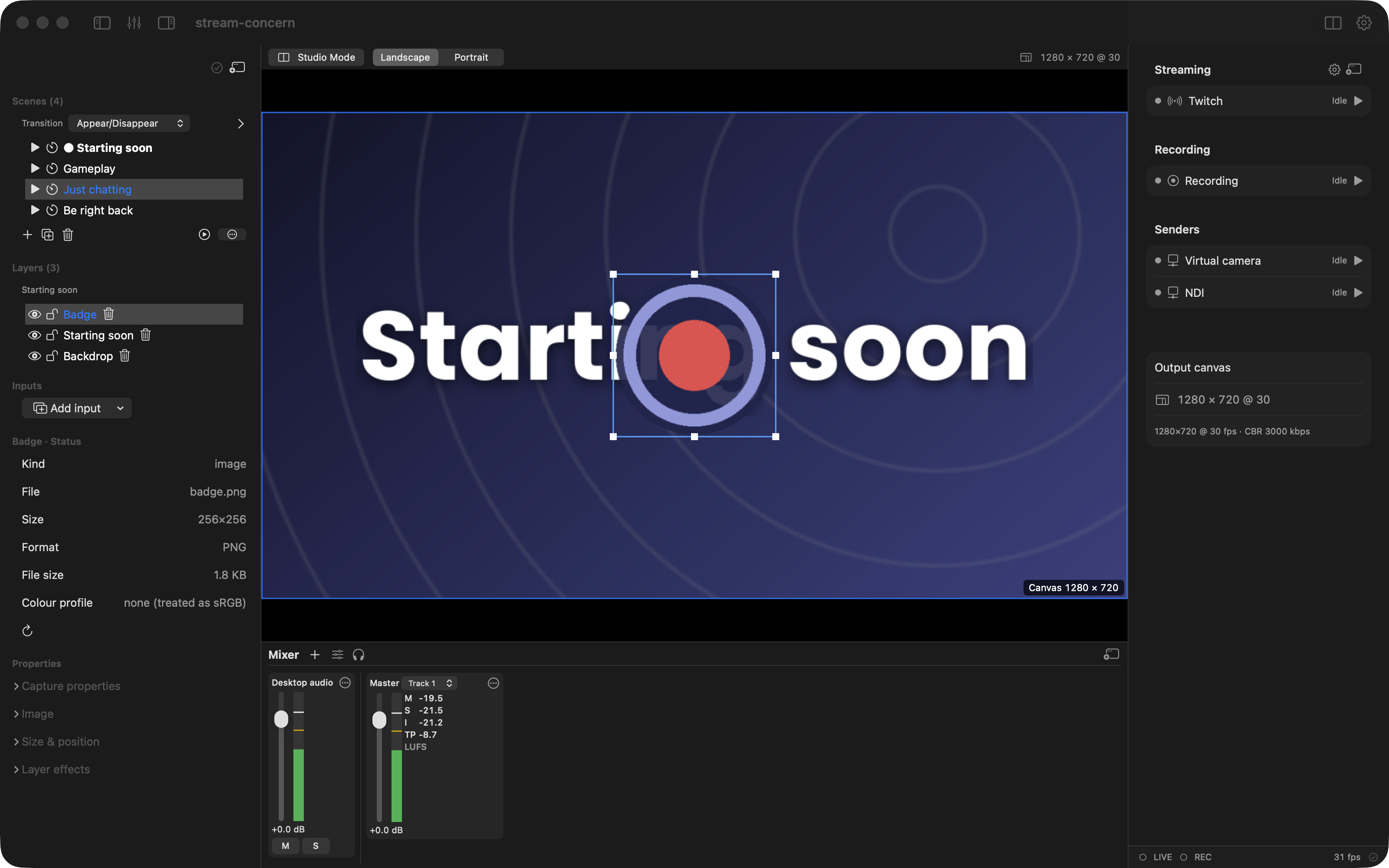
Windows
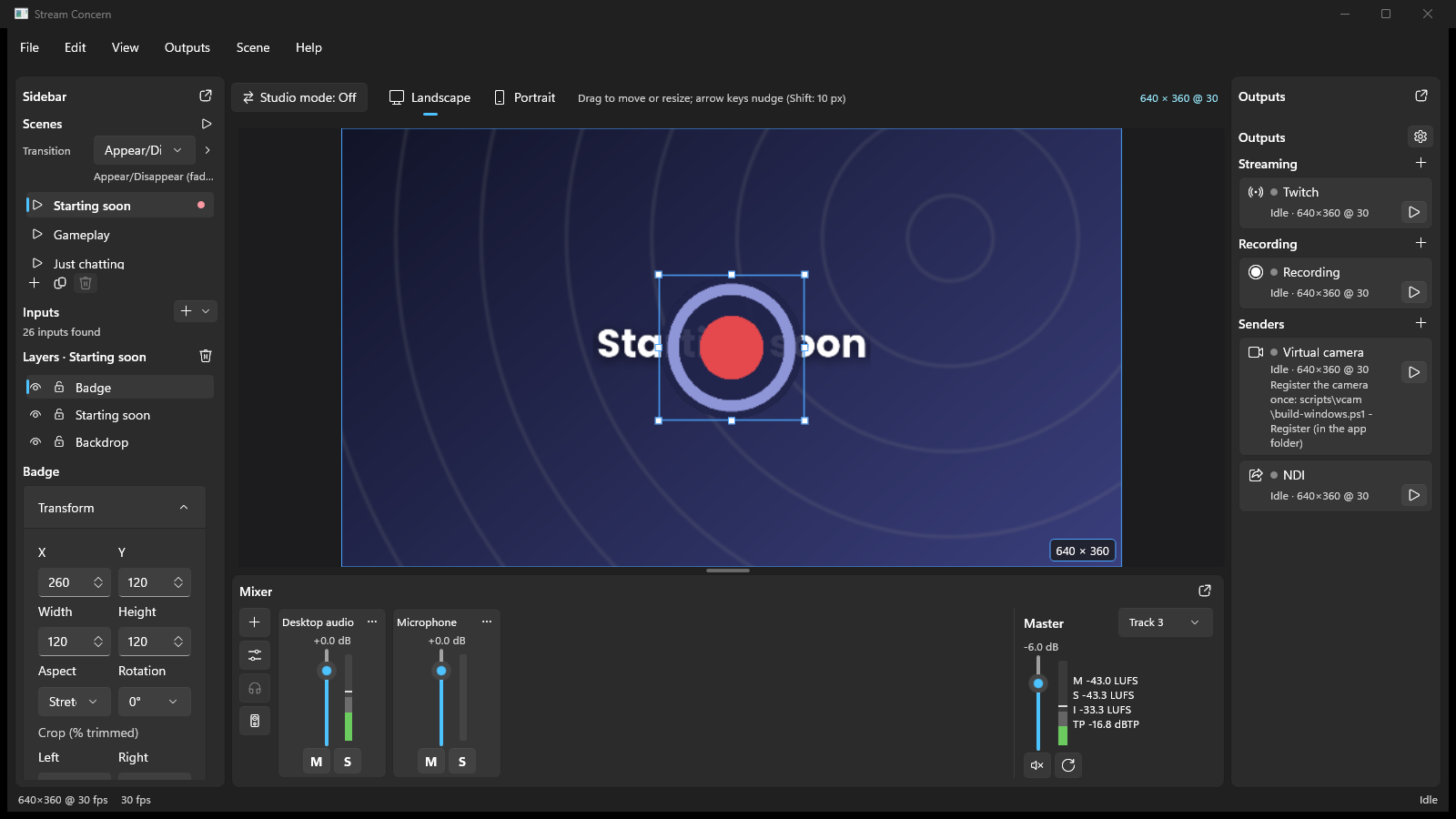
Linux
Linked layers
One layer can be shown by several scenes. A linked layer is one layer: its source, name, capture options, text or web style, media settings, position, size, crop, rotation, opacity and effects are shared, so an edit made in any scene shows in every scene that has it (and undo undoes it everywhere). Each scene keeps its own visibility, lock, stacking position and portrait placement for it.
Right-click a layer’s name for its menu:
- Copy to Scene (Linked) ▸ (the default) — show this layer in the scene you pick too. Picking a scene that already shows it (its own scene included) adds a private copy instead.
- Copy to Scene (Unlinked) ▸ — add a separate copy to the scene you pick; later edits to either do not reach the other.
- Unlink (a linked layer only) — give this scene its own copy in the layer’s place; the other scenes keep the linked layer.
- Rename… — rename the layer in its row (Enter or clicking away applies, Esc cancels). The name belongs to the layer, so a linked layer is renamed in every scene. A text layer shows its text as its name, so editing its name edits the text (the item reads Edit Text in the macOS app). To edit a text where it is shown, double-click it on the canvas (see Editing text on the canvas).
The layer’s Properties say “Linked · in N scenes: Main, Second” with an Unlink button while it is linked.
Adding a layer, or renaming one, to a name another layer of the project has (ignoring case and surrounding spaces) shows ““Camera” is already a layer in Main” above the layer list, with Link to the existing layer (this scene shows the existing layer in the new one’s place, keeping its stacking position, visibility and lock; the new layer and its source go) and Keep separate (not offered again for those two layers this session). An Unlink’s own copy is not offered the link back.
On Linux the system picker tells the app neither a window’s title nor its app, so two window layers are offered the link when they are the same restored pick or when you have given both the same name (two layers named “Firefox”), never for the made names “Window 1” and “Window 2”. Renaming both to one name is how you say two window layers show the same window, and Keep separate declines.
Removing a linked layer from one scene removes it from that scene only; the last scene’s removal removes the layer and closes its source. ⧉ Duplicate still makes private copies of a scene’s layers. Relinking a missing linked placeholder relinks it in the scene you do it in.
Placing and sizing layers (the canvas editor)
Layers are placed and sized by direct manipulation directly on the preview. A new layer is placed in the middle of the canvas at its content’s own size: a display, window, game or video file at its pixel size, a camera at its format’s size, an image at its pixel size, a text at the size of its text, a web page at the page’s size (see Web overlays), a news crawl as a band across the bottom. Content larger than the canvas is scaled down to fit, keeping its shape; nothing is scaled up. Only the test pattern fills the canvas. A source whose size is not known yet (a capture or camera that has not sent a picture, an RTMP ingest or interchange input) starts as a half-canvas placeholder and takes its own size with its first picture, if you have not moved it by then.
The box is the picture. For a layer with aspect Fit (the default), the outline, the handles and the area you can click are the picture itself, not the empty bands around it. Dragging a handle scales the picture and keeps its shape (as if Shift were held), and the layer’s box shrinks or grows with it, so it never holds empty space. With Fill or Stretch the box is the layer’s frame, as before. A text layer’s box follows its text (see Text boxes).
When a source changes size (a captured window resized, a camera switched to another format, a media file replaced), the layer keeps its scale and its top-left corner and the box fits the new picture. A cropped layer is left as it is. Opening a project changes no box: a layer saved with a box larger than its picture keeps it until its source changes size or you resize it.
Gestures:
- Click a layer to select it; click empty canvas to clear the selection.
- Drag the body to move it.
- Drag a corner or edge handle to resize. Hold Shift to keep the aspect ratio; hold Alt to resize about the layer’s centre.
- A press up to 8 points outside the picture’s edge still reaches the handles there, so a layer that fills the canvas (its handles half outside the picture) resizes from its outer edge too.
- Shift-click adds to the selection, so several layers move and resize together.
- A selected layer stays grabbable under other layers. Select a layer in the Layers list (or on the canvas) and the preview outlines it even when layers above it cover it; a press anywhere inside its outline, or on its handles, moves or resizes it instead of the layer on top, and a click there keeps it selected. Outside the selected layers’ outlines the top-most layer under the pointer is picked as before, and Shift-click still adds the top-most one. A locked or hidden layer is never picked.
- Snapping: while moving, edges snap to the canvas edges and centre lines and to other layers’ edges, within an 8-pixel threshold, and a pink guide line shows the snap. Resizes are not snapped.
- Arrow keys nudge the selection by 1 px, or 10 px with Shift held.
Selected layers are outlined with corner and edge handles.
Editing text on the canvas
A text layer is edited where it is shown, at its real size and font, as in a design app: no pop-up field.
- Double-click a text layer on the canvas, or press Enter with one text layer selected, to start editing. The whole text is selected, and a caret and selection highlight are drawn inside the text. A locked or hidden layer cannot be edited.
- Type, paste, Backspace / Delete, the arrow keys, Home / End and ⌘A / Ctrl+A work as in any text field. Hold Shift to extend the selection; hold Option (macOS) or Ctrl (Windows, Linux) to move by word. Click inside the text to place the caret, drag to select.
- Shift+Enter inserts a line break. In a one-line text Enter finishes the edit; once the text has line breaks, Enter adds another and ⌘Enter / Ctrl+Enter finishes.
- Esc cancels: the text and its box go back to how they were.
- Clicking outside the text finishes the edit too.
The text on the canvas, in the stream and in recordings changes as you type (the caret and highlight are only in the editor, never in the output). Finishing records one undo step for the whole edit, and none when the text did not change. In Studio mode the edit goes to the Preview scene. The Text field in the layer’s inspector still works as a second way to edit.
Text boxes
A text layer’s box follows its text: Auto size, on for a new text, makes the box the text’s bounds plus its margins and grows or shrinks it as you type, keeping the text’s left edge, centre or right edge in place according to its alignment.
- Dragging a corner handle scales the text as before; the box keeps following the text at the new scale.
- Dragging a left or right edge handle sets a fixed width: Auto size turns off and the text wraps at the box’s width. The height still follows the lines.
- The Auto size switch in the inspector’s Text section turns it back on and refits the box.
Opening a saved project changes no box. A text saved before Auto size existed keeps its box until you next edit it on the canvas, when it starts following its text without jumping.
The preview’s bar, canvas label and outline
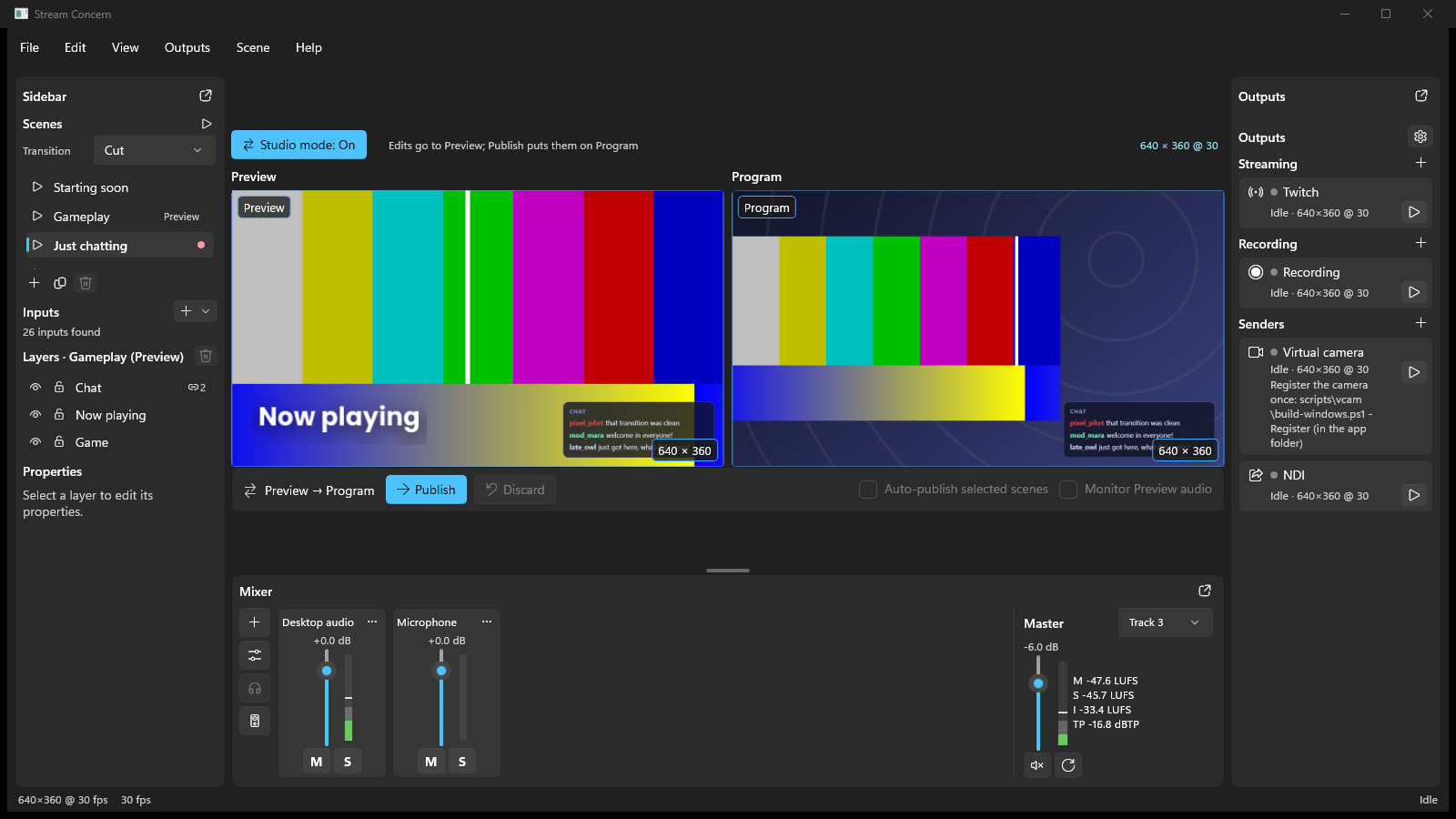
Above the preview a bar holds the Studio mode control (a labelled toggle
with a two-pane icon that reads Studio mode: on while it is on; see
Studio mode), the Landscape / Portrait switch outside
Studio mode, and at the right the canvas label, e.g. 1920 × 1080 @ 60.
Click the label to open Settings ▸ Video; hover it for the canvas and the
portrait canvas, the composed and presented frame rates, the colour the
encoders tag (NV12 · BT.709 · Limited range), each output’s encoder, and the
GPU adapter the compositor runs on.
The canvas has a thin outline with its size at the bottom right (Canvas 1920 × 1080), so a scene whose layers are small still shows where the canvas
ends. While a stream or recording runs, Program’s outline turns red and reads
Program • live at its top left.
Fit to canvas
Fit to canvas (a layer’s right-click menu, and beside w / h in Properties) makes the layer’s box the whole canvas and fits its picture inside it keeping the aspect (Fit), with its crop and rotation kept; one undo restores the old placement. A linked layer changes in every scene that shows it.
Align and distribute
When two or more layers are selected, an Align & distribute toolbar appears in the properties area:
- Align left / right / top / bottom (⇤ ⇥ ⤒ ⤓).
- Centre horizontally (⇔) and Centre vertically (↕).
- ↔ distribute and ↕ distribute to space three or more layers evenly.
Layer properties (transforms and aspect)
The Properties section shows numeric fields for the selected layer:
- x / y — position, and w / h — size, in canvas pixels.
- crop l/t/r/b — crop each edge (0…1 of the source).
- Aspect — how the source fills its box:
- Fit (the default) — scale to fit inside the box, letterboxing or pillarboxing with black bars; the source is never stretched.
- Fill — scale to cover the box, cropping the overflow.
- Stretch — stretch to the box exactly, ignoring aspect ratio.
- Rotation — 0°, 90°, 180° or 270°.
- Opacity — 0…1.
The Layer effects controls animate visibility and scene changes:
- Show fade and Hide fade each have an enable checkbox, a duration in milliseconds, and Linear or Ease in-out timing. Toggling the eye while a fade is running reverses smoothly from the opacity currently on screen.
- Crossfade with scene makes the layer take part in Crossfade, Fade through black and Appear/Disappear transitions. Clear it when the layer should switch instantly at the transition midpoint, such as a persistent graphic or title. Slide, Push, Wipe and Zoom move or uncover the whole picture, so they ignore this setting.
When a scene transition contains both fading and midpoint-cut layers, layers keep their order within each scene. The incoming scene is composited above the outgoing scene during the overlap.
Fit is the default because a source is never stretched unless you ask for it.
Scene automation
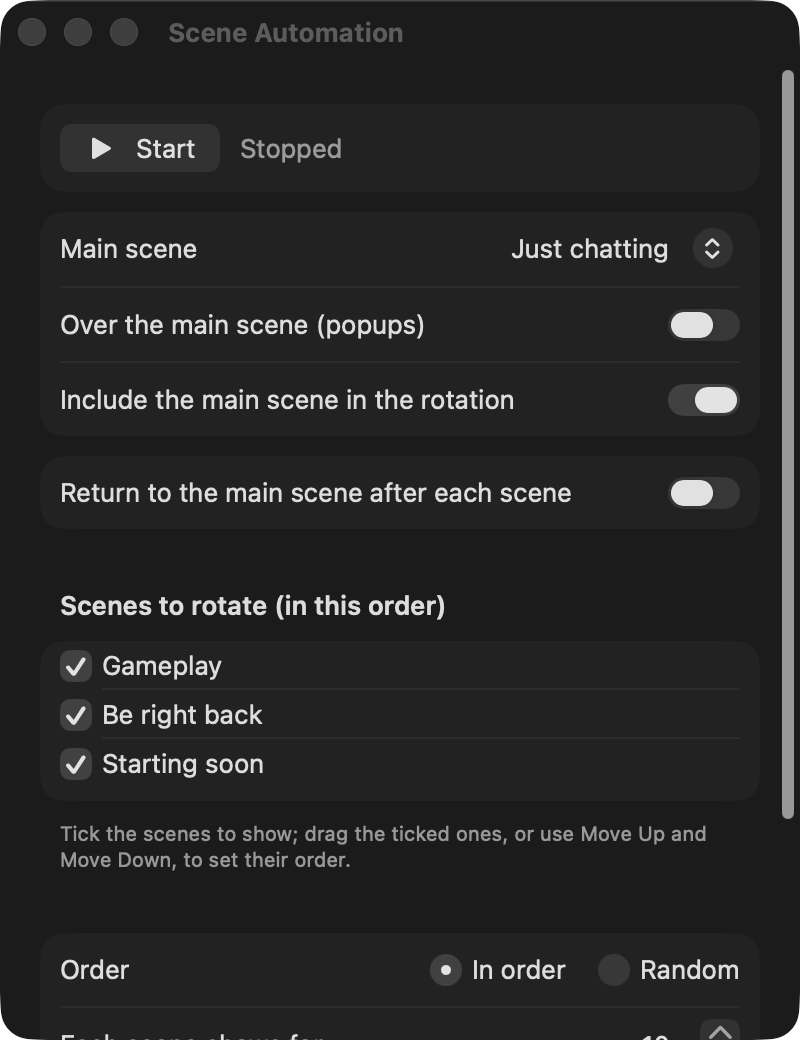
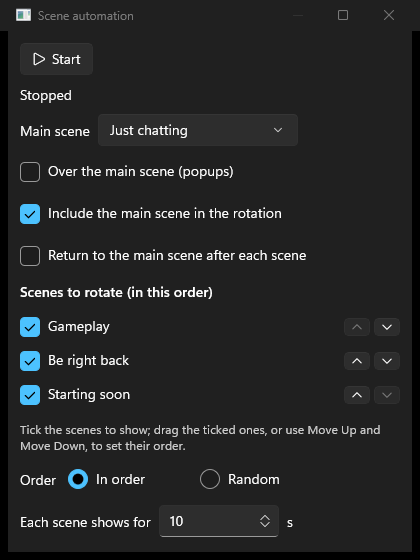
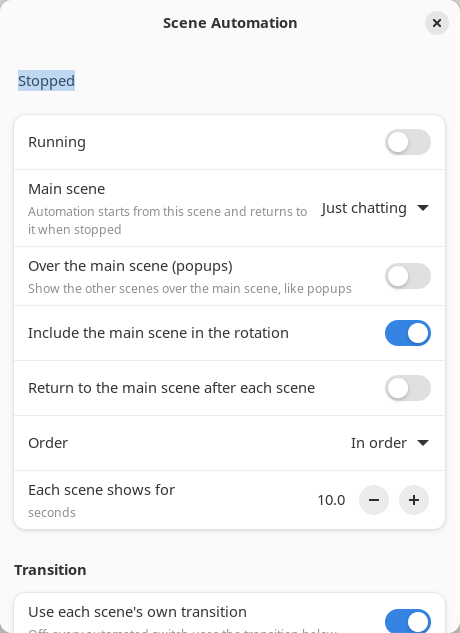
Scene automation switches Program on a timer: through your scenes in the order you arrange, looping, or to a random scene each time, and, if you like, back to your main scene between every other scene, or with the other scenes popping up over the main scene (see Popups over a root scene). Open it from Scene ▸ Scene automation… or with the small ⏵ button at the right of the scene list’s Transition row (it shows ⏸ while automation runs). It opens in its own window, which remembers where you put it.
The window holds:
- Start / Stop, and a live line:
On Program: Scene 2 · Next: Intro in 4 swhile running (with popups:On Program: Main + A · Next: B over Main in 8 s),Stoppedotherwise, andWaiting for the Studio publish to finishwhile a Publish of yours is still transitioning. In Studio mode it adds “Scene automation switches Program; Preview shows the next scene.”; when scenes in the rotation have no layers it says how many (“1 of the 3 scenes in the rotation is empty”), since Program is black while one of them shows. - Main scene: the scene that is “always on”. Start puts it on Program and starts the timer; Stop puts it back on Program. The first time you open the window it is set to the scene on Program. With (none), automation starts from whatever is on Program and leaves Program where it is when stopped. With popups on it reads Root scene.
- Over the main scene (popups) (off by default; needs a main scene): the other scenes pop up over the main scene instead of replacing it. See Popups over a root scene.
- Include the main scene in the rotation (on by default): the main scene is then the first entry of the rotation, so the show keeps coming back to it once per round. Off, it is shown only at Start and Stop.
- Return to the main scene after each scene (off by default; needs a main scene): the main scene shows between every other scene. In order then runs main, A, main, B, main, C, main, A …; Random runs main, a random pick, main, a random pick … (never the same pick twice in a row when there is a choice). With it on, Include the main scene in the rotation does not apply.
- Scenes to rotate (in this order): tick the other scenes to include. The ticked scenes are listed first, in the order they play; drag them, or use Move Up and Move Down in a row’s right-click menu (or Option-Up and Option-Down on the selected row; with Command, to the top or bottom), to change that order. A scene you tick joins the end. The unticked scenes follow in scene-list order. (The egui app has ⏶ and ⏷ buttons on the ticked rows; the Windows and Linux apps have Move Up and Move Down buttons on the rows.) Settings saved before this change keep the order they had stored.
- Order: In order plays the rotation top to bottom and loops. Random picks any scene in the rotation with equal chance, but never the scene already on Program, so the same scene never plays twice in a row.
- Each scene shows for: how long each scene stays on Program, 0.5 s to 3600 s (default 10 s).
- Main scene stays for (shown with Return to the main scene on; Gap between popups with popups on): how long the main scene stays between the others, 0.5 s to 3600 s; until you set it, the same as Each scene shows for.
- Transition: with Use each scene’s own transition ticked (the default), every automated switch uses the scene’s transition override, else the collection default from the scene list. Untick it to choose one transition for every automated switch, with the same picker as the scene list (any of the eight kinds, Duration, Easing and its Direction, Zoom or Motion). Unticking it while the collection default is Cut starts from Appear/Disappear, 500 ms, Ease in-out.
How it behaves while running:
- The live line counts down to the next switch, including the step back to
the main scene (
On Program: Two · Next: Main in 3 s). The scene list’s Program marker moves with every automated switch, and the status bar shows AUTO beside LIVE and REC (in the Windows and Linux apps, hover it for the live line). Outside Studio mode the scene shown next carries a badge (⏵ in the egui app, a play icon in the macOS and Linux apps, Next in the Windows app), and with popups the scene popped up now carries Popup (an icon in the macOS app). In Studio mode there are no badges: Preview and the pane titles say the same (see Preview while automation runs). - About two seconds before each switch the next scene’s sources are started out of sight (pre-roll), so a camera or media file is ready when it goes live. The switch waits for the new sources’ first frame, but never more than three seconds. A media file started this way waits at its first frame and plays from there when it goes on Program.
- If a switch fails (a scene’s source cannot start, say), Program stays where it is and the same scene is tried again after the next dwell; after three failures in a row that scene is skipped and the live line names it.
- A transition whose end is never reported (which should not happen) is finished two seconds after its duration, so automation and Publish never wait forever.
- Switching scenes yourself (a scene’s ▶ button, a hotkey, a controller) does not stop automation. The timer starts again from your switch, and In order continues after the scene you chose when it is in the rotation (with Return to the main scene on: the main scene comes next if you switched to another scene, else the scene after the last one shown).
- Changing the times or Return to the main scene while running restarts the countdown; ticking, unticking or reordering scenes does not.
- In Studio mode, automation switches Program (what your audience sees, the right-hand pane) directly, and Preview shows the scene that comes next (see Preview while automation runs). When automation comes to a scene you are editing in Preview, Program shows the version last published, not your unpublished edits: only Publish puts Preview edits on Program. While a Publish you started is still transitioning, automation waits; the finished Publish counts as a switch of your own, so the timer starts again from it. Scene edits that Studio mode refuses during a transition are also refused during an automated transition.
- The settings are saved with your scenes in
scenes.toml(and travel in an exported.sczcollection; importing one takes its automation settings only when your collection has none). Whether automation is running is not saved: it always starts stopped. - Removing a scene removes it from the rotation (and clears it as the main scene).
- Web overlays set to refresh when their scene is activated are refreshed by automated switches too, when the switch shows them anew (a web overlay in the root scene that stays on screen under a popup is not reloaded).
- The app log gets one line when automation starts, stops and switches
(
scene automation started,… switched,… stopped, with the scene numbers and the time), and one when your own switch or a timing change restarts the countdown, so a rotation that misbehaves can be traced.
macOS
Windows
Linux
macOS
Windows
Linux
Popups over a root scene
Tick Over the main scene (popups) to keep the main scene on Program the whole time and bring the other scenes up over it, like popups. The main scene is then the root scene, and the window says Root scene for it. You need a main scene for this; with (none) the toggle is off.
- The root scene’s layers stay where they are and keep running; each popup’s layers are drawn on top of them. A layer the popup shares with the root (a linked layer) stays in its place in the root.
- The root’s audio carries on unchanged. A popup’s audio comes in with the popup and goes with it.
- With Return to the main scene after each scene on, the root shows alone between popups: root, root + A, root, root + B … The time it stays alone is Gap between popups. With it off, one popup follows the next (root + A, then root + B …) and the root shows alone only when Include the main scene in the rotation puts it in the rotation.
- Popups always come and go layer by layer, so the root never moves: Appear/Disappear is used as chosen; a Slide becomes Appear/Disappear with the Slide’s direction as its Motion; a Zoom uses the Zoom motion; Crossfade, Fade through black, Push and Wipe use the Fade motion; Cut stays a cut. The Duration and Easing are kept.
- Pre-roll works as for any automated switch: a popup’s camera or media starts about two seconds early, and a media file starts from its first frame when the popup goes live.
- ▶ on a scene in the rotation while popup automation runs pops that scene up over the root now. ▶ on any other scene (or on the root) is a plain switch; automation carries on from the next step.
- Stop takes the popup down and leaves the root alone on Program.
- The live line and the Program title name what is on air as
Main + A, and the next step asB over Main.
Preview while automation runs
In Studio mode, while automation runs, Preview follows automation: it shows the scene that goes on Program next (with popups, the next popup, drawn over the root, which you cannot edit there). The pane titles say so:
- Preview:
Preview · Next: B in 8 s(with popupsPreview · Next: B over Main in 8 s). - Program:
Program · AUTO, andProgram · AUTO · Main + Awhile popup A is up over the root Main.
How following behaves:
- Editing the scene in Preview holds it there: the title reads
Preview · held (edited)and Preview stops moving on. Publish or Discard releases it, and Preview follows again. If automation comes to that scene first, Program gets the version last published. - Picking a scene for Preview yourself turns following off; the title
reads
Preview · manual (Follow automation). Follow automation turns it back on (a button beside the Preview title in the macOS and Windows apps, in the bar under the panes in the egui and Linux apps), and so does publishing the scene you picked. - Publish while Preview is following plays the next scene now and restarts the timer; following then goes on to the scene after it. With popups, publishing a rotation scene pops it up over the root.
- When automation stops, the titles go back to Preview and Program.
Remote controllers can read and change automation through the
stream-concern vendor requests (see
Remote control).
Persistence
Scenes and their layers are saved to a scenes.toml sidecar next to your
profile (see Getting started for the path). It is rebuilt
on the next launch: real capture sources are reopened, media and image layers
reopen their files, and a source that no longer exists is left as a placeholder.
A linked layer is saved once per scene with the same id and reopened once;
.scz export and import keep the links.
Portable collections
Use File ▸ Export Scene Collection… to save a portable .scz collection.
The bundle contains the scene document plus referenced PNG, JPEG, GIF and SVG
image assets. SVGs with scripts, external references, or stylesheet blocks are
rejected. Text layers keep the font family name, but font files are not
redistributed. Web layer definitions include their saved URL and custom CSS;
review those values before sharing a bundle. Profile settings, stream keys,
ingest keys, capture permission tokens and media files are never included.
Use File ▸ Import Scene Collection… while every stream, recording and interchange output is stopped. The app validates the complete bundle before it appends its scenes to your collection and installs its image assets under the app’s asset folder. Existing scenes and Program stay selected. Machine-local sources import as hidden placeholders, ready to relink. Web layers also import disabled so opening a bundle cannot load a page; activate or relink imported sources explicitly after reviewing them.
Studio mode
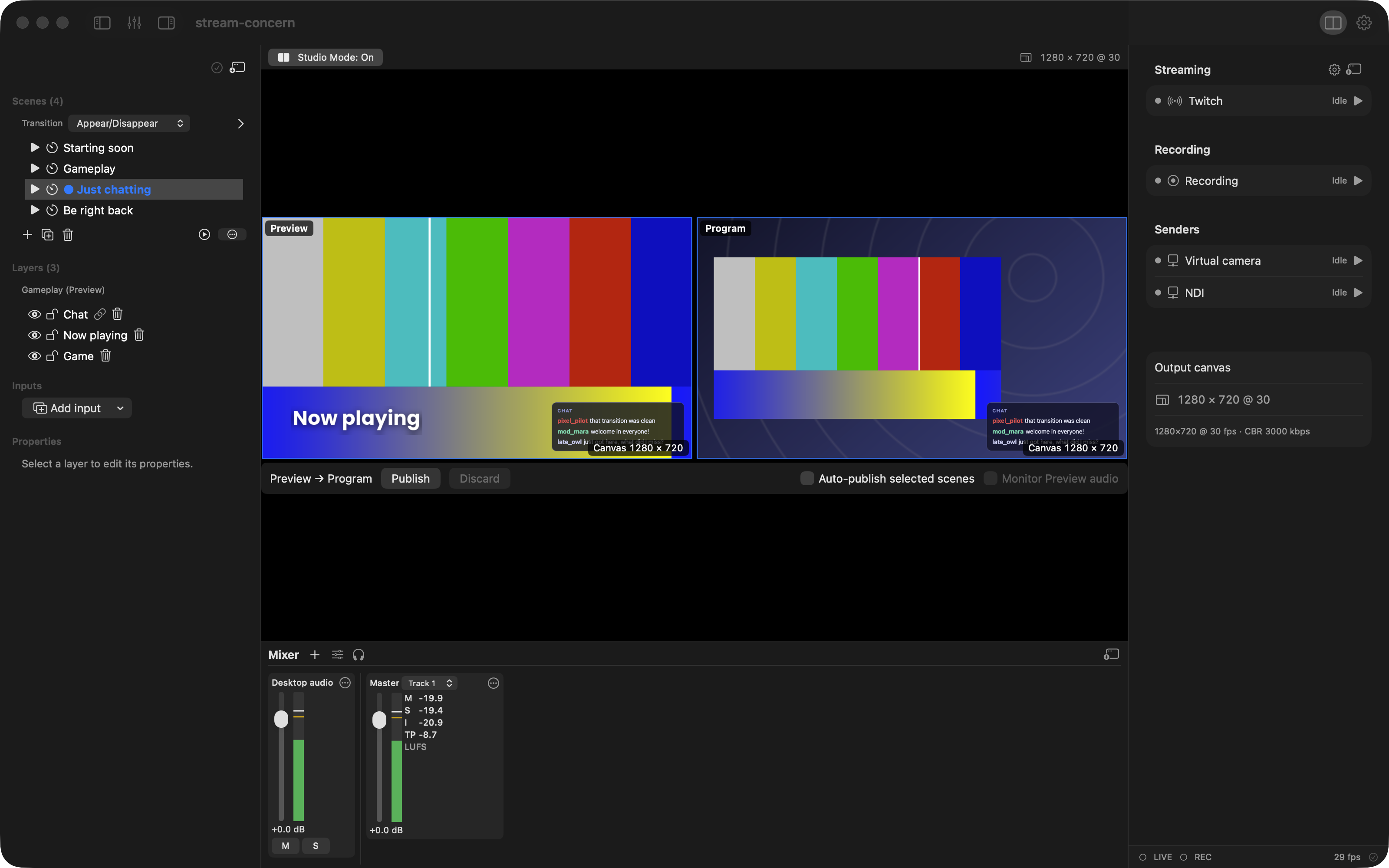
Turn it on with the Studio mode toggle in the bar above the preview (or
Scene ▸ Studio mode, ⌘⇧T / Ctrl+Shift+T). Studio mode shows Preview on
the left and Program on the right, top-aligned, each outlined with its
name at the top left (Preview, Preview • edited once changed;
Program, Program • live while an output runs) and the canvas size at
the bottom right (while scene automation runs the titles say what comes
next, see Preview while automation runs).
Program is the view sent to recordings, streams, and
interchange outputs. One click on a scene’s name prepares it in Preview: the
Layers list shows that scene’s layers at once, under a header naming it
(Layers (3) · Second (Preview)), and Program is untouched until you publish.
The bar directly under the two panes holds Publish, Discard,
Auto-publish selected scenes and Monitor Preview audio. Click
Publish, or press Command+Enter on macOS and Ctrl+Enter
elsewhere, to send Preview to Program. A normal Publish uses the destination
scene’s transition override when present and otherwise uses the collection
default; Shift-clicking a scene’s arrow forces a cut. Enable Auto-publish
selected scenes to publish each selection automatically.
Preview edits remain private until Publish. Use Discard to restore the scene and source settings from when it was selected into Preview (or its accepted Program version when editing Program). Publish, Discard, scene selection, and conflicting source controls remain unavailable while a source edit, Settings apply, import, or transition is finishing.
Preview source audio does not enter Program outputs. Enable Monitor Preview audio when you want to hear Preview locally; this does not unmute it for recordings or streams.
Program-only source meters remain visible in Studio, with their controls locked. Ingest audio controls are unavailable in Studio; microphone, system-input and master controls still affect the live mix. A web page’s strip does too: its fader, Mute, pan, tracks, monitoring, sync offset and filters change the page’s live audio at once, with no Preview copy of the page, and its mute is saved with the layer like the inspector’s Mute page audio. Media and web filter changes remain live-only and are not included in saved collections.
Scene changes save automatically in the background. If a save fails, the app shows the error and keeps the window open when you try to close it. Retry the save after fixing the destination, or choose Keep app open to continue.
macOS
Windows
Linux